
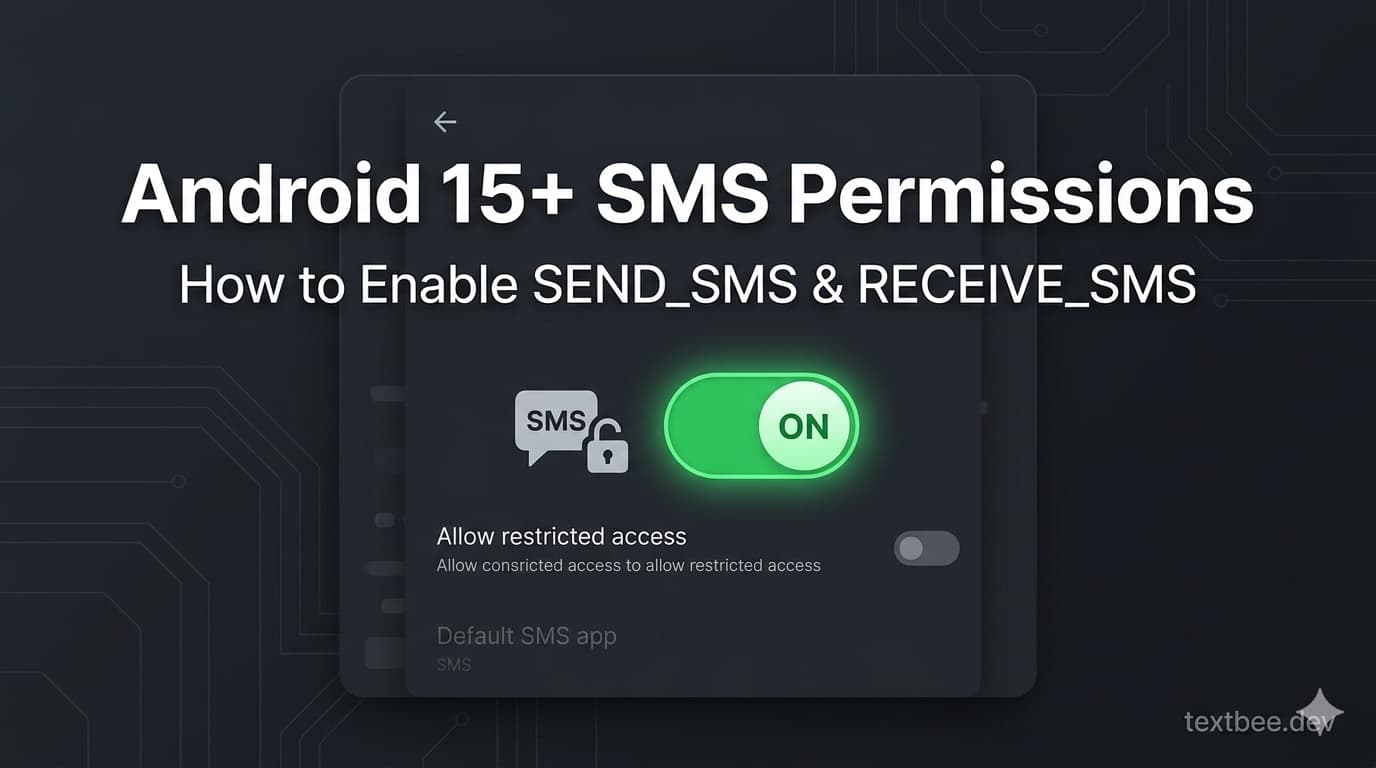
Android 15+ SEND_SMS Permission: How to Enable SMS Permissions on Android 15 & 16
SMS permission greyed out, not allowed, or missing on Android 15 or 16? Enable SEND_SMS and RECEIVE_SMS for sideloaded and restricted apps in under 2 minutes.
If the "Allow" option for SMS is greyed out on your Android 15 or 16 phone - or the permission dialog never appears at all - you're not doing anything wrong. Google changed the rules in Android 15, and apps installed outside the Play Store now need one extra tap to unlock SMS access.
The good news: it takes about 30 seconds once you know where to look. This guide shows you exactly where to tap, with notes for Samsung, Pixel, Xiaomi, and Motorola devices.
TL;DR: Open the app's App info page → tap the ⋮ menu → Allow restricted settings → then go to Permissions → SMS → Allow. Done.
Why is SMS permission disabled on Android 15 and 16?
Starting in Android 15, Google reclassified SEND_SMS and RECEIVE_SMS as hard-restricted permissions for apps that weren't installed from the Play Store. In plain English:
- The standard "Allow SMS" toggle is greyed out by default for sideloaded apps.
- Android wants you to make a second, deliberate choice to unlock these permissions - a safeguard against malware that silently abuses SMS.
- Once you grant "restricted settings" access, the app behaves normally again.
This affects every sideloaded SMS app on Android 15+ - whether you installed it from an APK, F-Droid, a beta channel, or a direct download from the developer.
How to enable SMS permissions on Android 15 & 16 (step-by-step)
Step 1 - Open the app's info page
- Long-press the app's icon on your home screen or app drawer.
- Tap App info (the ⓘ icon on most launchers).
Or go the long way: Settings → Apps → See all apps → [your app].
Step 2 - Allow restricted settings
- On the App info screen, tap the three-dot menu (⋮) in the top-right corner.
- Tap Allow restricted settings.
That single tap is the one everyone misses. It tells Android "yes, I trust this app enough to configure its sensitive permissions."
Don't see the ⋮ menu? See the device-specific notes below - Motorola, Samsung, and Xiaomi hide it in different places.
Step 3 - Grant the SMS permission
- Still on the App info page, tap Permissions.
- Under Not allowed, tap SMS.
- Change the selection from Don't allow to Allow.
Reopen the app - it should now detect the permission and start sending and receiving messages normally.
Device-specific notes
Pixel (stock Android 15/16): The ⋮ menu is in the top-right of the App info screen. Exactly as described above.
Samsung (One UI 7 / 8): The menu may be labeled More instead of a three-dot icon. Tap it → Allow restricted settings.
Xiaomi / Redmi (HyperOS): You may need to first enable Settings → Privacy protection → Special permissions → Install unknown apps for the app, then the restricted settings menu will appear.
Motorola: If the ⋮ doesn't show on the main App info page, tap Permissions first - the menu button often appears on that sub-screen instead.
OnePlus / Oppo (ColorOS): Look under App info → App details → Permissions, then the overflow menu.
Still not working? Common gotchas
- You updated the app and it broke again. Reinstalling or updating an APK sometimes resets the restricted-settings flag. Just repeat steps 1-3.
- The ⋮ menu is missing entirely. Make sure you opened App info for the correct app - not its Play Store listing or a different package.
- Permission flips back to "Don't allow" after a reboot. Disable battery optimization for the app (Settings → Apps → [app] → Battery → Unrestricted). Aggressive battery savers on Xiaomi, Huawei, and Oppo can revoke permissions on sleep.
- You're on a work profile or managed device. Your IT admin may be blocking restricted settings entirely. Contact them, or install on a personal device.
FAQ
Does this also affect Play Store apps? No. Apps installed from Google Play are exempt from the hard-restricted permission flow. Only sideloaded apps (APKs) need this extra step.
Is it safe to grant "restricted settings"? Yes, for apps you trust. It doesn't give the app new powers - it just lets you configure the permissions the app already requested. If you're unsure, check whether the app is open source so you can verify exactly what it does with SMS access.
Will I have to do this every time the app updates? Usually no. In some edge cases (especially major OS updates), the flag can reset - just rerun the three steps above.
What's the difference between SEND_SMS and RECEIVE_SMS?
SEND_SMS lets an app send outgoing text messages. RECEIVE_SMS lets it read incoming ones. Grant only what the app actually needs.
What Android versions does this apply to? Android 15 and 16. Earlier Android versions use the normal runtime permission dialog and don't require the "Allow restricted settings" step.
Building SMS features into your own app?
If you landed here because you're developing or running an SMS-powered workflow - notifications, 2FA, alerts, reminders - and you need a simple way to send SMS from your backend without the cost of Twilio, textbee.dev turns any spare Android phone into an SMS gateway with a REST API. It's open source and free to start.
A few guides you might find useful:
- textbee.dev Quickstart - send your first SMS via API in 5 minutes
- Send SMS from Node.js
- Send SMS from Python
- SMS gateway use cases & integrations
Still stuck on the permission issue? Feel free to reach out at support@textbee.dev.
Get more textbee in Google Search
Add textbee.dev as a preferred source. Our posts show up more often in your Google results.
You may also like

What Is an Android SMS Gateway? How It Works, Pros, Cons & When to Use One (2026)
An Android SMS gateway turns a phone you already own into a programmable SMS sender. Learn how it works, when it beats Twilio, real costs, and setup steps.
textbee.dev SMS Gateway Quickstart
Get started with textbee.dev SMS Gateway in minutes. Learn to send and receive SMS using your Android phone as a gateway for your own applications.
Open Source SMS Gateway: Self-Host Your Own with an Android Phone (2026)
textbee is an MIT-licensed, self-hostable SMS gateway. What open source means here, self-hosted vs managed, how to run it with Docker Compose, and how it compares with Gammu and other Android gateways.