
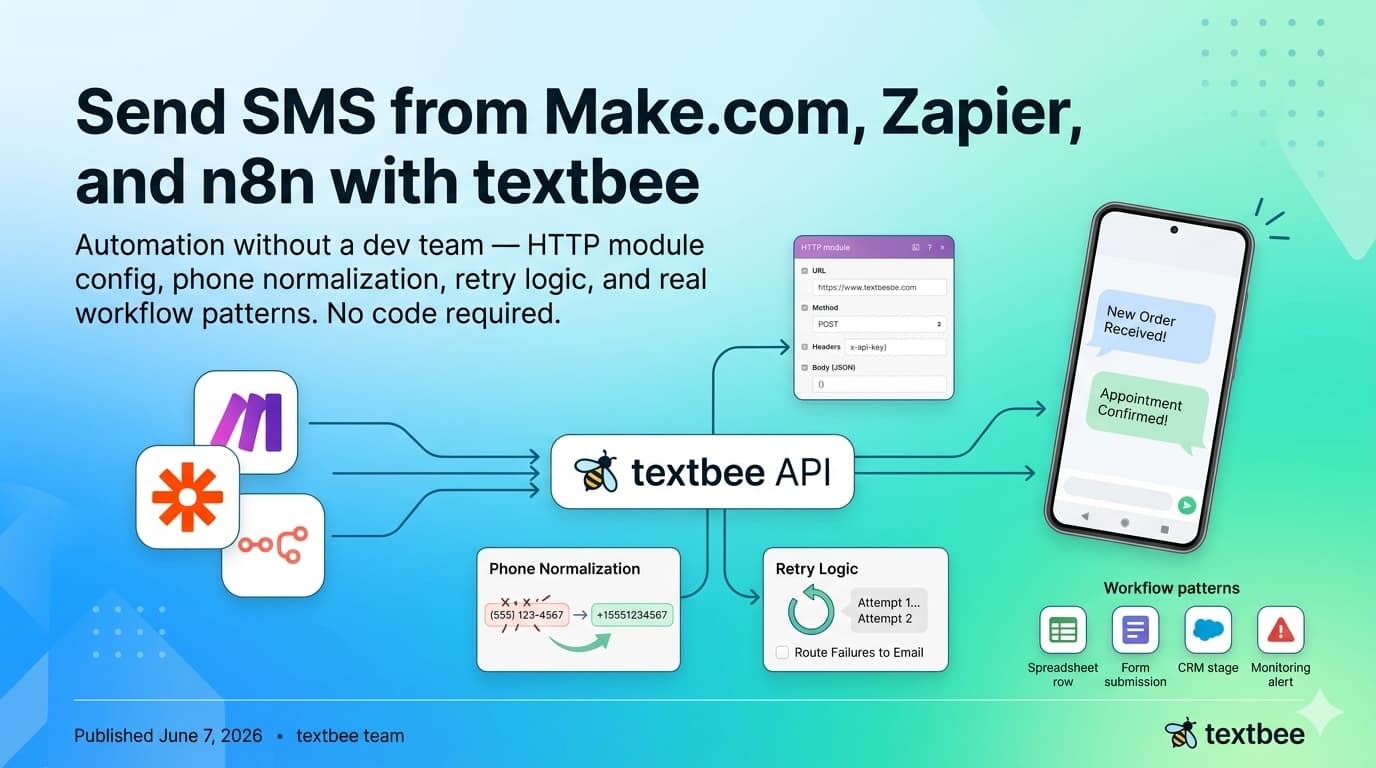
Send SMS from Make.com, Zapier, and n8n with textbee
Automate SMS without a dev team: HTTP module config, phone normalization, retry logic, and workflow patterns for Make.com, Zapier, and n8n. No code needed.
TL;DR
- textbee exposes a REST API that any no-code tool can call with an HTTP module, no native integration required.
- The core pattern is always the same: POST JSON with your
device ID,recipient, andmessagetoapi.textbee.dev. - Store your API key in the platform's secret vault, never in a scenario field.
- Normalize phone numbers to E.164 (
+15551234567) before sending, spreadsheet formats will break delivery silently. - Design retries carefully: SMS through a real SIM is not stateless. Retry once with backoff; route failures to email instead of looping.
No-code tools excel at "when X happens, do Y." If Y includes texting someone's phone, you need three things to avoid trouble: permission to text, clean phone numbers, and retry behavior that doesn't spam.
textbee exposes an HTTP API that Make.com, Zapier, n8n, and similar platforms can call once you have an API key and device ID. This guide covers concrete configurations and patterns that work across all of them.
Prerequisites: A linked Android device running the textbee app, a working send from the dashboard, and a staging scenario that targets your own phone first. If you haven't done the initial setup, follow the quickstart.
Test the API manually before wiring automation
Before touching any no-code tool, confirm the API call works from your terminal. If this succeeds, every platform will work: their HTTP modules all send the same request.
curl -X POST "https://api.textbee.dev/api/v1/gateway/send-sms" \
  -H "x-api-key: YOUR_API_KEY" \
  -H "Content-Type: application/json" \
  -d '{
    "recipients": ["+15551234567"],
    "message": "Test from automation setup"
  }'
A successful response looks like:
{
  "data": {
    "success": true,
    "message": "SMS added to queue for processing",
    "smsBatchId": "abc123",
    "recipientCount": 1
  }
}
Keep this terminal window open while you configure your automation. If you get a 401, check the API key. If you get a 400, check the JSON body structure.
Make.com: HTTP module configuration
Make.com's HTTP > Make a request module handles everything. There is no native textbee app, and you do not need one.
Module settings:
| Field | Value |
|---|---|
| URL | https://api.textbee.dev/api/v1/gateway/send-sms |
| Method | POST |
| Headers | Content-Type: application/json |
| Body type | Raw |
| Content type | JSON (application/json) |
Body (raw JSON):
{
  "recipients": ["{{phone}}"],
  "message": "{{message_text}}"
}
Where {{phone}} and {{message_text}} are mapped from earlier modules in your scenario (e.g., a Google Sheets row or a form trigger).
API key: Add a second header x-api-key with value pulled from a Custom connection or the scenario's Data store, never typed directly into the header field. In Make, go to Connections > Add connection > HTTP if your plan supports it, or store the key in a Data Store and reference it via a Get a record module.
Error handling: In the HTTP module settings, set Parse response to Yes so you can route on the returned success field. Add an Error handler route with Resume pointing to a separate path that sends an email notification when success is false.
Zapier: Custom action configuration
Zapier doesn't have a textbee app, but Zapier's Webhooks by Zapier action covers it completely.
- Add action: Webhooks by Zapier > POST
- URL:
https://api.textbee.dev/api/v1/gateway/send-sms - Payload type:
json - Data:
recipients[]: {{phone_number}}
message: {{your_message_field}}- Headers:
Content-Type: application/jsonx-api-key: YOUR_API_KEY
Storing the API key securely in Zapier: Zapier doesn't have a native secret vault in lower tiers. Options: (a) use a Zapier Secret if on a paid plan, (b) store the key in a Formatter step that outputs a fixed value, or (c) use a connected Google Sheet cell that contains the key. Option (a) is strongly preferred.
Testing: Zapier's "Test step" sends a real request. Point {{phone_number}} at your own number during setup, not a customer's.
n8n: HTTP Request node configuration
n8n is popular with the self-hosting crowd, the same audience that runs textbee. The HTTP Request node configuration:
| Field | Value |
|---|---|
| Method | POST |
| URL | https://api.textbee.dev/api/v1/gateway/send-sms |
| Authentication | Header Auth |
| Header name | x-api-key |
| Header value | {{ $env.TEXTBEE_API_KEY }} (from environment variable) |
| Body content type | JSON |
JSON body:
{
  "recipients": ["{{ $json.phone }}"],
  "message": "{{ $json.message }}"
}
In n8n, store your API key as an environment variable (TEXTBEE_API_KEY) rather than pasting it into the node. On self-hosted n8n, set it in your .env file or Docker compose env block.
n8n error handling: Add an Error Trigger node or use the node's built-in On Error output to route failures to a Slack notification or email node.
Phone number normalization
Spreadsheets, forms, and CRMs store phone numbers in inconsistent formats. Before any send, normalize to E.164 format: + followed by country code and number, no spaces or punctuation.
Common bad formats that will silently fail or reach the wrong number:
(555) 123-4567      ← US format, no country code
555-123-4567        ← dashes, no country code
+1 (555) 123-4567   ← spaces inside
5551234567          ← no country code, no +
In Make.com: Use a Text > Replace module or a Tools > Set variable with a regex:
{{replace(replace(replace(1.phone, " ", ""), "-", ""), "(", "")}}Then prepend +1 (or your country code) if missing. For multi-country lists, this gets complex, consider a small Cloud Function for phone validation.
In Zapier: Use the Formatter by Zapier > Text > Find & Replace action to strip non-digits, then use a Zapier Code step (JavaScript):
const digits = inputData.phone.replace(/\D/g, '');
const e164 = digits.startsWith('1') ? '+' + digits : '+1' + digits;
return { phone: e164 };
In n8n: Use a Code node before the HTTP Request with the same strip-and-prepend logic.
Four workflow patterns worth copying
Pattern 1: New spreadsheet row → SMS
Good for: volunteer rosters, appointment lists, small CRMs managed in Google Sheets.
Flow: Watch for new rows (Google Sheets trigger) → normalize phone → POST to textbee → log status in a "Sent" column.
Gotchas: Spreadsheets trigger on every edit. If a row is edited five times, you get five sends unless you guard with a "Status = pending" filter before the HTTP module.
Pattern 2: Form submission → confirmation SMS
Good for: event RSVPs, appointment requests, application acknowledgments.
Flow: Form webhook → validate that phone field is non-empty → send confirmation.
Gotchas: Viral forms can spike, add a rate-limit step or a queue. For anything marketing-adjacent, include clear opt-in language on the form itself before this flow runs.
Pattern 3: CRM stage change → notification SMS
Good for: booking confirmations, deal closed notifications, "your service is scheduled" messages.
Flow: CRM trigger on stage change → template with customer name and date → send.
Gotchas: Guard every template variable. If {{customer_name}} is blank, the message looks broken. Add a filter step: if phone is empty, skip; if name is empty, substitute "there."
Pattern 4: Monitoring alert → on-call SMS
Good for: "site is down," "payment gateway failing," "database disk at 90%."
Flow: Monitoring webhook → filter by severity (only CRITICAL) → SMS on-call roster.
Gotchas: Alert fatigue destroys SMS as a channel fast. Reserve this for actionable, human-required events. Include a ticket ID or deep link in the message body so the recipient knows exactly what to do.
Retry logic: design this carefully
Automation platforms love automatic retries. SMS through a real SIM is not a stateless API, retrying aggressively can send the same message multiple times.
Safe retry pattern:
- On a non-2xx response, wait 30-60 seconds and retry once.
- On a second failure, route to a dead-letter path: send an email to the team, log to a spreadsheet row marked "FAILED."
- Never retry more than twice for a single triggered send.
Idempotency: If your platform supports idempotency keys, use them. textbee's smsBatchId in the response is useful for logging, store it so you can trace whether a message actually queued.
"It said success" ≠ delivered: A 200 response means the message was accepted and queued on the device. The device sends it asynchronously. For delivery confirmation, configure webhooks and listen for status updates.
Compliance reminder
Even helpful, transactional messages can be regulated. Before turning on any public-facing SMS automation:
- Get explicit consent before the first message.
- Honor STOP / opt-out replies, set up an inbound webhook to handle them.
- Respect quiet hours (typically 8am-9pm local time for marketing; transactional is more flexible).
- Review the SMS compliance checklist for your jurisdiction.
When to move to code
No-code works well until your scenario grows past ~3 HTTP modules and template logic starts to feel fragile. The natural graduation point: move message composition and recipient validation into a small Cloud Function or Node.js route, and let Make/Zapier call that one stable URL instead of the textbee API directly. Starting points:
Frequently asked questions
Does Make.com or Zapier have a native textbee integration?
No. You use the generic HTTP module (Make) or Webhooks by Zapier action. This is actually an advantage: you are not dependent on a third-party integration staying up to date.
What's the rate limit on the textbee API?
The practical limit is your device and SIM throughput, not an API rate limit. A typical consumer SIM can sustain several hundred messages per hour. If your automation triggers burst faster than that, add a delay between iterations or fan out across multiple devices.
Can I use Zapier webhooks to receive inbound SMS?
Yes: configure a textbee inbound webhook to POST to a Zapier Catch Hook trigger URL. Inbound SMS from your Android device arrives in real time as a JSON payload that Zapier can act on. Full inbound setup is covered in the receive SMS webhook guide.
My automation triggers but no SMS arrives. What do I check?
- Confirm the API call returns
200and"success": truein your HTTP module's response data. - Open the textbee dashboard and check the message queue, it should show the message as queued or sent.
- Check that the Android device is online, charged, and that SMS permissions haven't been reset (especially after Android OS updates, see the Android 15 permission guide).
- Verify the recipient number is in valid E.164 format.
Can I send to multiple recipients in one Make/Zapier scenario step?
Yes. The recipients field is an array. If your trigger provides multiple phone numbers (e.g., a comma-separated column), split the string into an array first, then pass it in the JSON body: "recipients": ["{{phone1}}", "{{phone2}}"]. Each recipient gets the same message body.
Start automating
- Create a textbee account and grab your API key and device ID from the dashboard.
- Download the Android app if you haven't linked a device yet.
- Follow the 5-minute quickstart to send your first message from curl.
- Then wire the same call into Make, Zapier, or n8n using the configs above.
Your customers already respond to SMS. Your automation is just the trigger.
Get more textbee in Google Search
Add textbee.dev as a preferred source. Our posts show up more often in your Google results.
You may also like
n8n SMS Integration with textbee: Automate SMS Without Code
Send SMS from n8n workflows using textbee and your Android phone as the gateway. HTTP Request node config, workflow patterns, expressions, and a full open-source self-hosted stack guide.

How to Send Text Messages Programmatically with textbee: SMS API Guide
Send text messages from your own code with the textbee SMS API: step-by-step setup and send examples in multiple programming languages, from your own Android phone.
Send SMS from Shopify with Shopify Flow: Order and Shipping Texts From Your Own Phone
Text customers when a Shopify order is placed or shipped, from your own number, with one Shopify Flow workflow and the Send HTTP request action. Liquid body included.