
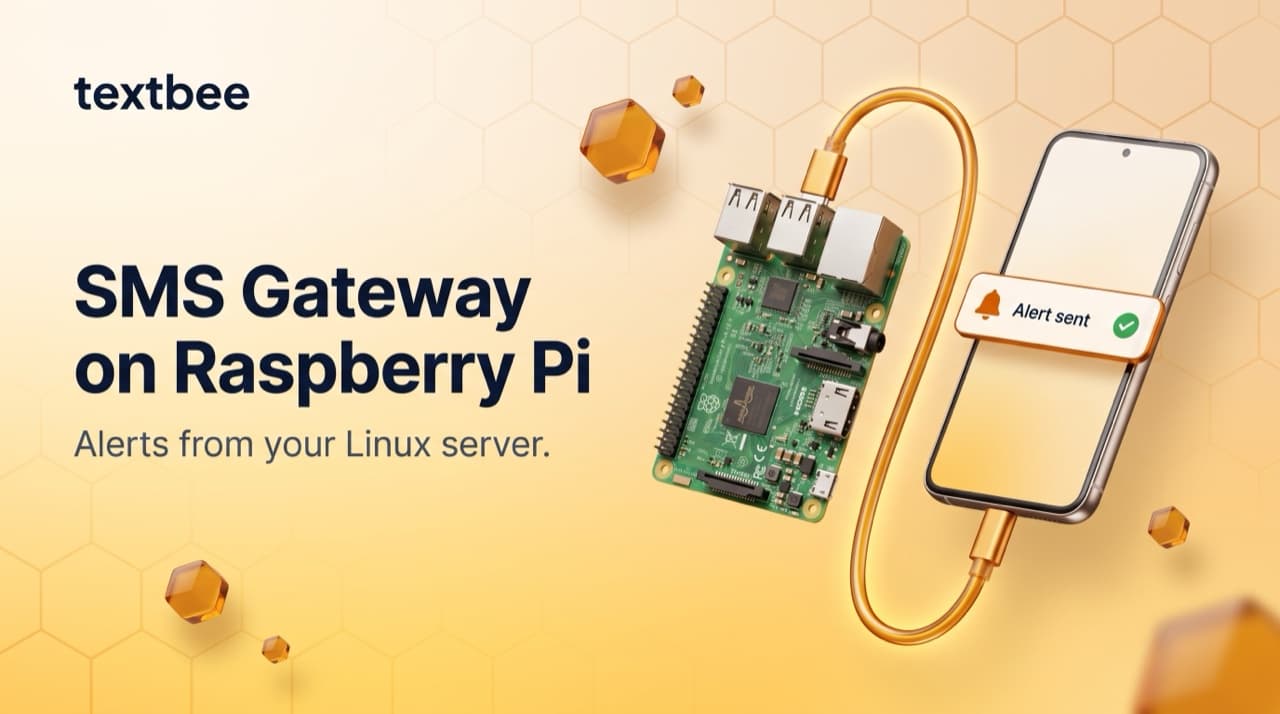
SMS Gateway for Raspberry Pi and Linux Servers: Alerts via Your Android Phone
Send SMS alerts from a Raspberry Pi or Linux server using textbee and an Android phone as the gateway. Python scripts, bash/curl one-liners, systemd services, and Uptime Kuma webhook config.
TL;DR
- Architecture: Pi/Linux server → textbee REST API → Android phone → SMS. No GSM modem required.
- A one-line curl command is enough for simple cron alerts. A Python script gives you a reusable
send_sms()function for any monitoring use case. - Works with Uptime Kuma, Grafana, and Netdata via their webhook notification channels.
- For persistent monitoring daemons, wrap in a systemd service.
- This is easier and cheaper than a USB GSM modem in 2026: no driver hell, no SIM slot on the Pi required.
If you run a Raspberry Pi or a home server, you've probably wanted SMS alerts for things that matter: disk full, service down, temperature spike, power outage detected. The problem is setting up SMS on Linux has historically meant either a cloud SMS API bill or wrestling with hardware GSM modems and AT commands.
textbee gives you a third option: use an Android phone you already own as the SMS gateway. Your Pi calls the textbee REST API over the local network (or internet), the phone sends the SMS from its SIM, and you get the alert on your phone, without a per-message fee.
Architecture
Raspberry Pi / Linux server
         |
         | HTTP POST (local network or internet)
         ↓
  textbee API (api.textbee.dev)
         |
         | queues message
         ↓
  Android phone (textbee app)
         |
         | SIM → carrier network
         ↓
  SMS delivered to recipient
Your Pi never touches the cellular network directly. It just makes a standard HTTPS request, and your phone handles the rest. The Android phone can be on the same WiFi network as the Pi, or anywhere with internet.
Option 1: Bash / curl (simplest)
For cron jobs and shell scripts, a single curl command is all you need:
#!/usr/bin/env bash

API_KEY="${TEXTBEE_API_KEY}"
PHONE="${ALERT_PHONE}"  # recipient phone in E.164 format

send_sms() {
  local message="$1"
  curl -s -X POST \
    "https://api.textbee.dev/api/v1/gateway/send-sms" \
    -H "x-api-key: ${API_KEY}" \
    -H "Content-Type: application/json" \
    -d "{\"recipients\": [\"${PHONE}\"], \"message\": \"$(echo "$message" | sed 's/"/\\"/g')\"}"
}

# Example: disk usage alert
DISK_USAGE=$(df / | awk 'NR==2{print $5}' | tr -d '%')
if [ "$DISK_USAGE" -gt 85 ]; then
  send_sms "ALERT: $(hostname) disk at ${DISK_USAGE}%. Check immediately."
fi
Store credentials in /etc/environment or a sourced .env file. Never hardcode them in scripts that might end up in git:
# /etc/environment (loaded at login for all users)
TEXTBEE_DEVICE_ID=your-device-id
TEXTBEE_API_KEY=your-api-key
ALERT_PHONE=+15551234567
Add the script to cron for periodic checks:
crontab -e
# Check disk every 15 minutes
*/15 * * * * /home/pi/scripts/disk-alert.sh
Option 2: Python script (reusable function)
For more complex monitoring (multiple thresholds, conditional logic, structured data), a Python script is cleaner:
#!/usr/bin/env python3

import os
import json
import subprocess
import requests

API_KEY   = os.environ["TEXTBEE_API_KEY"]
PHONE     = os.environ["ALERT_PHONE"]

def send_sms(message: str, recipients: list[str] | None = None) -> bool:
    url = "https://api.textbee.dev/api/v1/gateway/send-sms"
    try:
        response = requests.post(
            url,
            headers={"x-api-key": API_KEY, "Content-Type": "application/json"},
            json={"recipients": recipients or [PHONE], "message": message},
            timeout=10,
        )
        response.raise_for_status()
        return True
    except requests.RequestException as e:
        print(f"SMS send failed: {e}")
        return False

def get_disk_usage(path="/") -> int:
    result = subprocess.run(
        ["df", "--output=pcent", path],
        capture_output=True, text=True
    )
    return int(result.stdout.strip().split("\n")[1].strip().rstrip("%"))

def get_cpu_temp() -> float:
    try:
        with open("/sys/class/thermal/thermal_zone0/temp") as f:
            return int(f.read().strip()) / 1000.0
    except FileNotFoundError:
        return 0.0

def check_service(name: str) -> bool:
    result = subprocess.run(
        ["systemctl", "is-active", "--quiet", name]
    )
    return result.returncode == 0

if __name__ == "__main__":
    hostname = os.uname().nodename
    alerts = []

    disk = get_disk_usage("/")
    if disk > 85:
        alerts.append(f"Disk {disk}% full")

    temp = get_cpu_temp()
    if temp > 75:
        alerts.append(f"CPU temp {temp:.1f}°C")

    for service in ["nginx", "postgresql", "docker"]:
        if not check_service(service):
            alerts.append(f"Service DOWN: {service}")

    if alerts:
        message = f"[{hostname}] " + " | ".join(alerts)
        send_sms(message)
Run it from cron:
*/5 * * * * /usr/bin/python3 /home/pi/scripts/monitor.pyOption 3: systemd service for persistent monitoring
For a daemon that monitors continuously (rather than cron polling), wrap your script in a systemd service:
Create /etc/systemd/system/sms-monitor.service:
[Unit]
Description=SMS alert monitor
After=network-online.target
Wants=network-online.target

[Service]
Type=simple
User=pi
EnvironmentFile=/etc/textbee.env
ExecStart=/usr/bin/python3 /home/pi/scripts/monitor-daemon.py
Restart=on-failure
RestartSec=30

[Install]
WantedBy=multi-user.target
/etc/textbee.env (protected, mode 600):
TEXTBEE_DEVICE_ID=your-device-id
TEXTBEE_API_KEY=your-api-key
ALERT_PHONE=+15551234567
Enable and start:
sudo chmod 600 /etc/textbee.env
sudo systemctl daemon-reload
sudo systemctl enable sms-monitor
sudo systemctl start sms-monitor
The monitor restarts automatically after failures and starts on boot.
Uptime Kuma webhook integration
Uptime Kuma is the go-to self-hosted uptime monitor for homelabs. It has native webhook support. Point it at a small relay script that calls textbee:
Relay script (/home/pi/scripts/uptime-kuma-relay.py):
from flask import Flask, request
import requests, os

app = Flask(__name__)

API_KEY   = os.environ["TEXTBEE_API_KEY"]
PHONE     = os.environ["ALERT_PHONE"]

@app.post("/webhook/uptime-kuma")
def handle_webhook():
    data = request.json
    monitor_name = data.get("monitor", {}).get("name", "unknown")
    status = "DOWN" if data.get("heartbeat", {}).get("status") == 0 else "UP"
    message = f"[Uptime Kuma] {monitor_name} is {status}"
    requests.post(
        "https://api.textbee.dev/api/v1/gateway/send-sms",
        headers={"x-api-key": API_KEY},
        json={"recipients": [PHONE], "message": message},
        timeout=10,
    )
    return {"ok": True}

if __name__ == "__main__":
    app.run(host="0.0.0.0", port=5001)
In Uptime Kuma: Settings → Notifications → Add → Webhook → set the URL to http://localhost:5001/webhook/uptime-kuma.
Grafana alert webhook
Grafana can send alerts via webhook when metrics cross thresholds. Use the same relay pattern:
In Grafana: Alerting → Contact Points → Add → Webhook → URL: http://your-pi:5001/webhook/grafana.
Adjust the relay to parse Grafana's JSON structure:
@app.post("/webhook/grafana")
def handle_grafana():
    data = request.json
    title   = data.get("title", "Grafana Alert")
    message_text = data.get("message", "")
    requests.post(
        "https://api.textbee.dev/api/v1/gateway/send-sms",
        headers={"x-api-key": API_KEY},
        json={"recipients": [PHONE], "message": f"[Grafana] {title}: {message_text}"},
        timeout=10,
    )
    return {"ok": True}
textbee vs hardware GSM modem (Gammu) in 2026
The traditional Linux SMS approach uses a USB GSM modem and Gammu (or gammu-smsd):
| textbee + Android | USB GSM modem + Gammu | |
|---|---|---|
| Hardware cost | Phone you already own | $20-$80 modem + SIM adapter |
| Setup time | 5 minutes | Hours (driver issues, port permissions, config) |
| Linux driver | Not needed (HTTP API) | Required (often kernel module issues) |
| SMS reliability | Android-grade (battle-tested) | Varies by modem chipset |
| Multi-SIM | Easy (one Android device = one SIM; add more devices) | Separate modem per SIM |
| Remote management | Via textbee dashboard | SSH into server + Gammu CLI |
| Pi Zero / minimal RAM | Full support (just needs curl/Python) | Gammu daemon uses significant RAM |
| MMS support | No | Limited |
For homelab use in 2026, the Android gateway approach is simpler in every dimension except MMS (which you almost certainly don't need for server alerts).
A note on using your Pi as the SMS device
A Raspberry Pi itself cannot send SMS. It has no cellular radio. textbee's Android app is what does the sending; the Pi just calls the API over your network. This means:
- The Pi and Android phone can be in different locations. The Pi just needs internet access
- If your Pi loses internet, SMS alerts about the outage won't send (a known limitation: pair with a local UPS + 4G router for true offline alerting)
- The Android phone needs to stay powered and connected to WiFi. See the reliability tips in the Home Assistant SMS guide for permanent-device setup
Frequently asked questions
Can I use a Raspberry Pi as the SMS sending device (not just the client)?
A Raspberry Pi has no built-in cellular radio. You'd need a HAT like the Sixfab 4G/LTE or a USB 4G modem. These work with Gammu or Hologram. But they're more expensive to set up and maintain than using an Android phone with textbee. The Pi is better used as the monitoring client; let an Android phone handle the cellular side.
Does this work if the Pi has no internet, only a local network?
If both your Pi and your Android phone are on the same local network, the Pi still needs to reach api.textbee.dev (the textbee cloud API) over the internet. For a fully offline/LAN-only setup, you'd need to self-host the textbee server on your local network and have your Android device registered to it. See the self-hosted guide.
What about a USB 4G modem plugged directly into the Pi?
That works with Gammu or ModemManager and is a legitimate option for truly offline alerting. The tradeoff: more complex setup, driver compatibility varies by modem, and you need a separate SIM for the modem. For most homelab use cases, the textbee Android gateway is the path of least resistance.
How do I avoid SMS fatigue from too many alerts?
Use cooldown logic in your monitoring script. Track the last alert time and suppress duplicates within a window:
import time, pathlib

COOLDOWN_SECONDS = 1800  # 30 minutes

def should_alert(key: str) -> bool:
    flag_file = pathlib.Path(f"/tmp/sms-alert-{key}")
    if flag_file.exists():
        age = time.time() - flag_file.stat().st_mtime
        if age < COOLDOWN_SECONDS:
            return False
    flag_file.touch()
    return True

# Usage:
if disk > 85 and should_alert("disk-full"):
    send_sms(f"Disk at {disk}%")
Can I send SMS from a Docker container on the Pi?
Yes. The textbee API is just an HTTPS endpoint. Pass the credentials as environment variables in your docker run command or docker-compose.yml:
environment:
  - TEXTBEE_DEVICE_ID=${TEXTBEE_DEVICE_ID}
  - TEXTBEE_API_KEY=${TEXTBEE_API_KEY}
  - ALERT_PHONE=${ALERT_PHONE}
Get started
- Create a textbee account: free tier, no credit card required
- Download the Android app
- Follow the 5-minute quickstart
- API docs: full endpoint reference
- Pricing: flat subscription, no per-message fee
Download textbee and get your first Pi SMS alert running in under 10 minutes.
Get more textbee in Google Search
Add textbee.dev as a preferred source. Our posts show up more often in your Google results.
You may also like

n8n SMS Integration with textbee: Automate SMS Without Code
Send SMS from n8n workflows using textbee and your Android phone as the gateway. HTTP Request node config, workflow patterns, expressions, and a full open-source self-hosted stack guide.
Open Source SMS Gateway: Self-Host Your Own with an Android Phone (2026)
textbee is an MIT-licensed, self-hostable SMS gateway. What open source means here, self-hosted vs managed, how to run it with Docker Compose, and how it compares with Gammu and other Android gateways.

SMS vs WhatsApp Business API in 2026: Which Should You Build On?
SMS or the WhatsApp Business Platform? Compare reach, pricing model, setup time, template rules, and when to use each or both.