
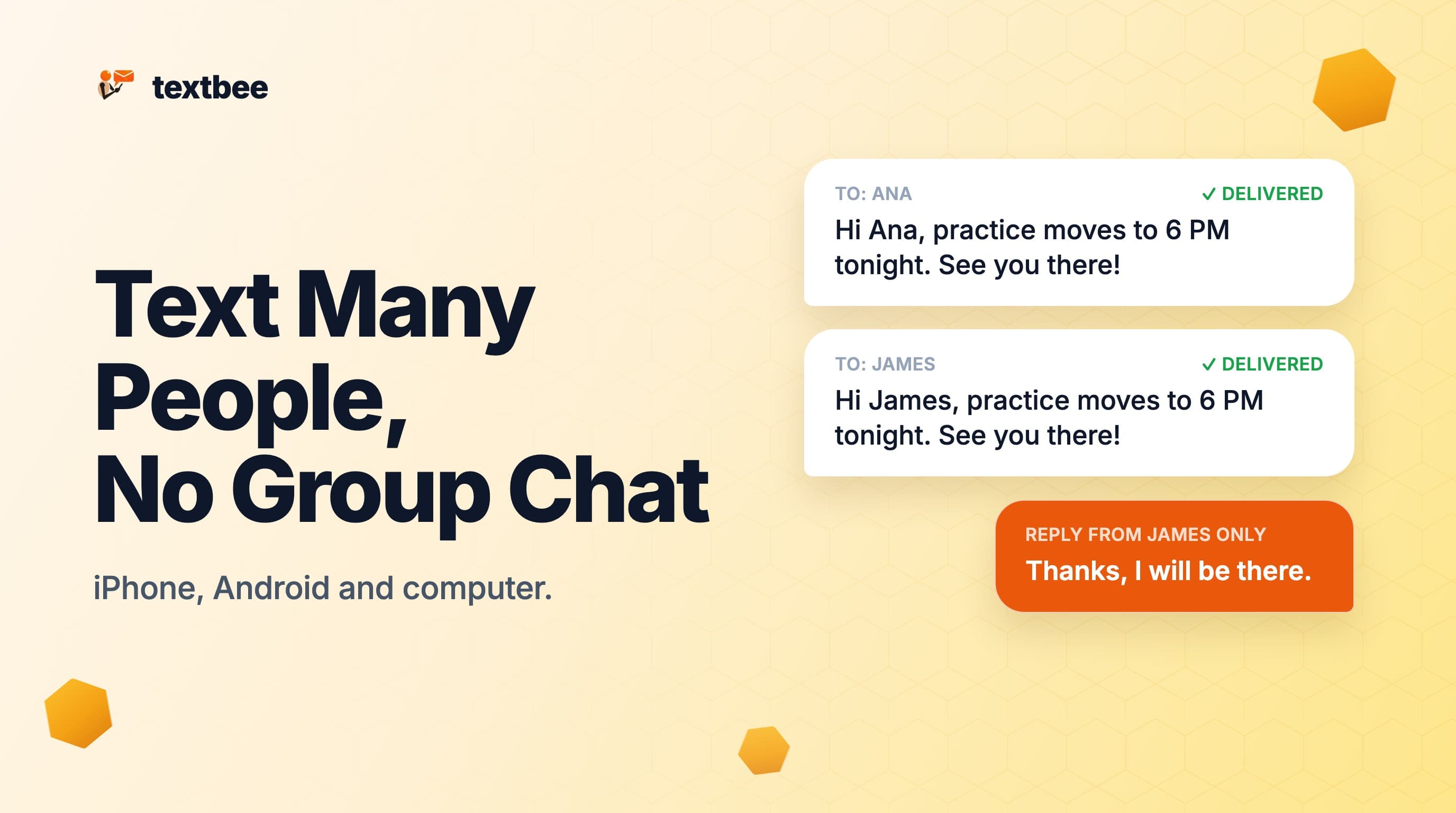
How to Text Multiple People Without a Group Message (iPhone, Android and Computer)
Send one text to many people so each gets a private message and replies come back only to you. Steps for iPhone, Android and a computer with a spreadsheet.
TL;DR
- A group message puts everyone in one thread. Every reply goes to the whole group, and everyone sees the other numbers. To send one message that reaches each person privately, you need a mass text: separate one-to-one texts with replies that come back only to you.
- iPhone: the old Group Messaging switch is gone since iOS 17. With MMS Messaging off, a message to several non-iPhone contacts goes as group SMS, and Apple says each reply arrives as an individual text. iMessage contacts still form a group. A Shortcut that sends one message per contact is the reliable way.
- Android (Google Messages): go to Messages settings > Advanced > Group messaging and choose Mass text: "Send an SMS reply to all recipients and get individual replies."
- Computer: upload a spreadsheet to the textbee dashboard, write one message with a
{{ name }}placeholder, and an Android phone sends each person a private text from your own number. One phone sends about 10 to 15 messages a minute. The Free plan covers 300 messages a month.
You want to tell 40 parents that practice is cancelled, or remind 120 members about Sunday's potluck. You do not want 40 people in one thread, each "Thanks!" pinging everyone else. This guide shows three ways to send one message to many people so each person gets a private text and replies come back only to you. Pick the method that fits the size of your list.
Why group messages go wrong
A group message is fine for five friends planning dinner. For a club, a congregation or a customer list, it causes four problems:
- Reply-all by default. Every reply goes to everyone. One question about parking becomes 30 notifications on 30 phones.
- Everyone sees every number. The group shows all members, so each recipient gets the phone numbers of people they may not know. Customers did not agree to share their number with other customers.
- People leave, or mute the thread. Once a group gets noisy, people mute it or leave. Your next message then goes unread.
- Group MMS can cost more. Group texts to non-iPhone users often go as MMS, and some mobile plans count or charge MMS separately from SMS.
A mass text avoids all four. Each person gets an ordinary text from you, the same as if you typed it to them alone.
Method 1: iPhone
What changed in iOS 17
On iOS 16 and earlier, iPhone had a Group Messaging switch in Settings > Messages. With it off, replies to a group text came back to you as separate conversations. iOS 17 removed that switch. On Apple's community forum, a moderator confirmed in 2024: "The Group Message toggle has been removed." Many guides still tell you to turn it off. On a current iPhone, you will not find it.
How iPhone picks the message type
Apple's support article on group texts explains that the Messages app chooses the type for you:
- If every recipient uses an Apple device with iMessage on, the message goes as a group iMessage (blue bubbles). Everyone sees all replies.
- If any recipient does not use iMessage, it goes as MMS or SMS (green bubbles), or RCS on iOS 18 and later.
- In a group MMS or group RCS chat, everyone sees all replies.
- In a group SMS, Apple says: "All responses in a group SMS are sent as individual text messages and the recipients can't see the other responses from the group."
So the private behavior you want is group SMS. iPhone sends group SMS when group MMS is not available.
Option A: Turn off MMS Messaging (non-iPhone contacts only)
- Open Settings.
- Tap Apps, then Messages (on iOS 17 and earlier, tap Messages directly).
- Turn off MMS Messaging.
- On iOS 18 and later, also turn off RCS Messaging on the same screen, or RCS contacts can still form a group chat.
- Open Messages, tap the compose button, add your recipients and send.
Know the limits before you rely on this:
- It only helps with green-bubble contacts. If all your recipients use iMessage, the message is still a group iMessage that everyone sees.
- With MMS off, you cannot send photos to non-iPhone users until you turn it back on.
- Results vary. Some users on the Apple forum report it works. Others report that they could not message more than one person with MMS off.
- Send a test to two people you know before you text your whole list.
Option B: One message per contact
The only method that is private for every recipient, blue or green, is to send a separate message to each person.
- By hand: type the message once, copy it, and paste it into a new conversation for each contact. It works on every iPhone, and it is slow past 10 or 15 people.
- With Shortcuts: build a shortcut that uses Select Contacts (with Select Multiple on), then Repeat with Each, then Send Message inside the loop. Each contact gets their own message. Shared mass-message shortcuts can also add each contact's first name, taken from how you saved them in Contacts. Expect permission prompts on the first run (tap Always Allow), and you pick the contacts again each time.
Method 2: Android (Google Messages)
Google Messages has a setting for exactly this. Google's help page lists two choices under group messaging:
- Group conversations: "Send an MMS reply to all recipients."
- Mass text: "Send an SMS reply to all recipients and get individual replies."
To turn on mass text:
- Open Google Messages.
- Tap your profile photo or icon, then Messages settings.
- Tap Advanced, then Group messaging.
- Choose Mass text as your default.
- Start a new conversation, add your recipients, type the message and send.
Two things to check:
- RCS chats. Google's page says group options such as adding people and naming a group apply when every member has RCS chats on. It does not say whether the mass text setting changes an all-RCS group. Test with two contacts first.
- The setting is a default. It applies to new group messages you start. Switch it back to group conversations when you want a real group chat.
Other Android messaging apps have similar settings under different names. Check your app's settings for "group" or "multimedia messages".
The limits of sending from a phone
The phone methods work for a small list. They get hard as the list grows:
- You add every number by hand. There is no import from a spreadsheet. A list of 150 contacts means 150 taps or searches.
- Little personalization. Everyone gets the same words. You cannot add each person's time slot or order number. The only exception is a first name, added through an iPhone Shortcut.
- The phone may stop and ask. Android asks you to allow an app that sends many texts in a short time. In Android's source code, the default is 30 messages a minute, and phone makers can change it.
- Carriers watch for bulk-looking traffic. Many identical texts sent in a fast burst can get filtered or delayed. Slower pacing protects your number.
- No record of who got it. There is no list of which messages went out and which failed.
Method 3: From a computer, with a spreadsheet
For a list of dozens or hundreds, send from your computer. textbee uses an Android phone you own as the sender, so each person gets a private one-to-one text from your own number, the same as a text you type by hand. The send SMS from your computer page shows the full setup, and the mass texting page shows how businesses and groups use it for a whole list.
Steps
- Install the textbee app on an Android phone with a working SIM. Sign in to the dashboard and scan the QR code to link the phone. Keep the phone on a charger and connected to the internet.
- Make a spreadsheet with a
phonecolumn and anamecolumn, and save it as CSV. Use full numbers with the country code:
phone,name
+12015550101,Ana
+12015550102,Ben
+12015550103,Chloe- Open the dashboard in any browser on Windows, Mac, Linux or a Chromebook. Go to Messaging > Bulk Send and upload the CSV.
- Check the phone column and pick the phone that sends the messages.
- Write one message with placeholders.
{{ name }}becomes the value from each person's row, so Ana gets "Hi Ana" and Ben gets "Hi Ben". - Preview the message for each recipient. Nothing goes out until you confirm.
- Send. The phone sends the texts one at a time.
The dashboard skips rows with an empty, invalid or duplicate number and tells you which ones. The bulk SMS docs cover every step. To check a message before you upload a list, paste it into the bulk SMS template preview tool.
Replies
Each text comes from your real number, so people reply the normal way. Replies land on the phone, one conversation per person. With Receive SMS turned on in the app, they also show up in the dashboard's message history, so you can read and answer them from the computer. Nobody else on the list sees them.
How long it takes
The phone waits a few seconds between messages so your carrier does not flag the number. The default gap is 5 seconds. At that pace, one phone sends about 10 to 15 messages a minute, so 200 contacts take about 15 to 20 minutes. You can change the gap in the app under Settings > Send Delay. A longer gap is safer for large lists.
What it costs
| Plan | Price | Messages a month |
|---|---|---|
| Free | $0 | 300 (up to 50 a day) |
| Pro | $14.99 a month | Up to 5,000 |
| Scale | $29.99 a month | Up to 25,000 |
Prices from the pricing page, checked September 2026. There is no per-message fee from textbee. The texts go out on your SIM, so your mobile plan covers the carrier side, which on an unlimited-text plan adds nothing. Note the daily cap on Free: a list of 200 people needs Pro, or four days on Free.
Phone or computer: which to use
| iPhone | Android (Google Messages) | Computer with textbee | |
|---|---|---|---|
| Private replies | Yes for green-bubble contacts with MMS off, or with one message per contact. iMessage contacts can still form a group. | Yes, with Mass text on. Test all-RCS groups first. | Yes. Each person gets a separate text. |
| Personalization | No, except a first name through Shortcuts | No | Yes, any column: {{ name }}, date, time, order number |
| Practical list size | Small. You pick each contact by hand. | Small. You add each recipient by hand. | Hundreds, from a CSV, at about 10 to 15 a minute per phone |
| Setup | Change settings or build a Shortcut | Change one setting | Install the app on an Android phone and create an account |
For a dozen people you know, use your phone. For a customer list, a membership roll or a team roster that lives in a spreadsheet, use the computer.
Write a message people answer
A good mass text says who it is from, gives the one fact that matters, and asks for one simple reply. Keep it under 160 characters so it arrives as one message. Leave out emoji and curly quotes: either one switches the text to a format that fits only 70 characters per message.
Event reminder
Hi {{ name }}, the fall potluck is Sun Oct 11 at 5 PM in the church hall. Bring a dish if you can. Reply YES if you are coming.125 characters with sample values, 1 message.
Practice cancelled
Hi {{ name }}, Tuesday practice is cancelled due to rain. Next practice is Thu at 6 PM, same field. Reply with any questions. Coach Dana134 characters with sample values, 1 message.
Volunteer ask
Hi {{ name }}, can you help at the food drive Sat Oct 3, 9 to 11 AM? Reply 1 for yes or 2 for no. Thanks, Riverside Food Pantry125 characters with sample values, 1 message.
Customer notice
Hi {{ name }}, Main Street Bakery is closed Mon Oct 12 for the holiday. We reopen Tue at 7 AM. Reply STOP to opt out.115 characters with sample values, 1 message.
Sign the message with your name or your business name. Your number may not be saved in every recipient's phone.
Text only people who expect to hear from you
Send mass texts only to people who gave you their number and expect messages from you: your members, your team, your customers. Never text a purchased or scraped list. Add an opt-out line such as "Reply STOP to opt out" to anything promotional, and remove anyone who replies STOP the same day. Consent rules differ by country. The SMS compliance checklist covers opt-in and opt-out in detail.
Frequently asked questions
Can I send a mass text on iPhone without a group chat?
Yes, with limits. Since iOS 17 there is no Group Messaging switch. With MMS Messaging (and RCS Messaging on iOS 18 and later) turned off, a message to several non-iPhone contacts goes as group SMS, and Apple says each reply arrives as an individual text. Contacts who all use iMessage still form a group iMessage. To keep every recipient private, send one message per contact by hand or with a Shortcut.
Do recipients see the other numbers?
In a group iMessage, group MMS or group RCS chat, yes: every member sees the others. In a mass text, each person gets a separate one-to-one text, so they see only your number. The same is true for texts sent from the textbee dashboard, where each row in your spreadsheet gets its own message.
Is there a free way to send bulk texts from a computer?
Yes. The textbee Free plan sends 300 messages a month, up to 50 a day, from the dashboard in any browser. The texts go out through an Android phone you own, so they come from your own number and your mobile plan covers the carrier side. For larger lists, Pro is $14.99 a month for up to 5,000 messages.
How many people can I text at once?
From a phone, practical limits come first: you add every recipient by hand, and Android may ask you to allow a large send. From the textbee dashboard, you upload the whole list at once and one phone works through it at about 10 to 15 messages a minute, so 200 people take about 15 to 20 minutes. Your plan sets the daily and monthly totals.
Can I add each person's name to a mass text?
Not with the built-in group settings on iPhone or Android. A Shortcut on iPhone can add a first name from your contacts. The textbee dashboard can add any column from your spreadsheet, such as name, date or appointment time, with a placeholder for each column.
Next steps
- Send SMS from your computer: the full setup, from the Android app to the dashboard
- Bulk SMS for developers: send the same list from code, with delivery status per recipient
- SMS message templates: ready-made texts for reminders, orders and alerts
- SMS compliance checklist: consent and opt-out rules before you text a list
- Mass texting from your own number: text a whole customer or member list, replies come back to you
- Pricing: Free, Pro and Scale plans
Get more textbee in Google Search
Add textbee.dev as a preferred source. Our posts show up more often in your Google results.
You may also like
Bulk SMS for Developers: Send Personalized Mass SMS Free with textbee
Send bulk SMS with textbee: the recipients array, CSV lists, personalized templates, per-recipient delivery status, and honest throughput limits.
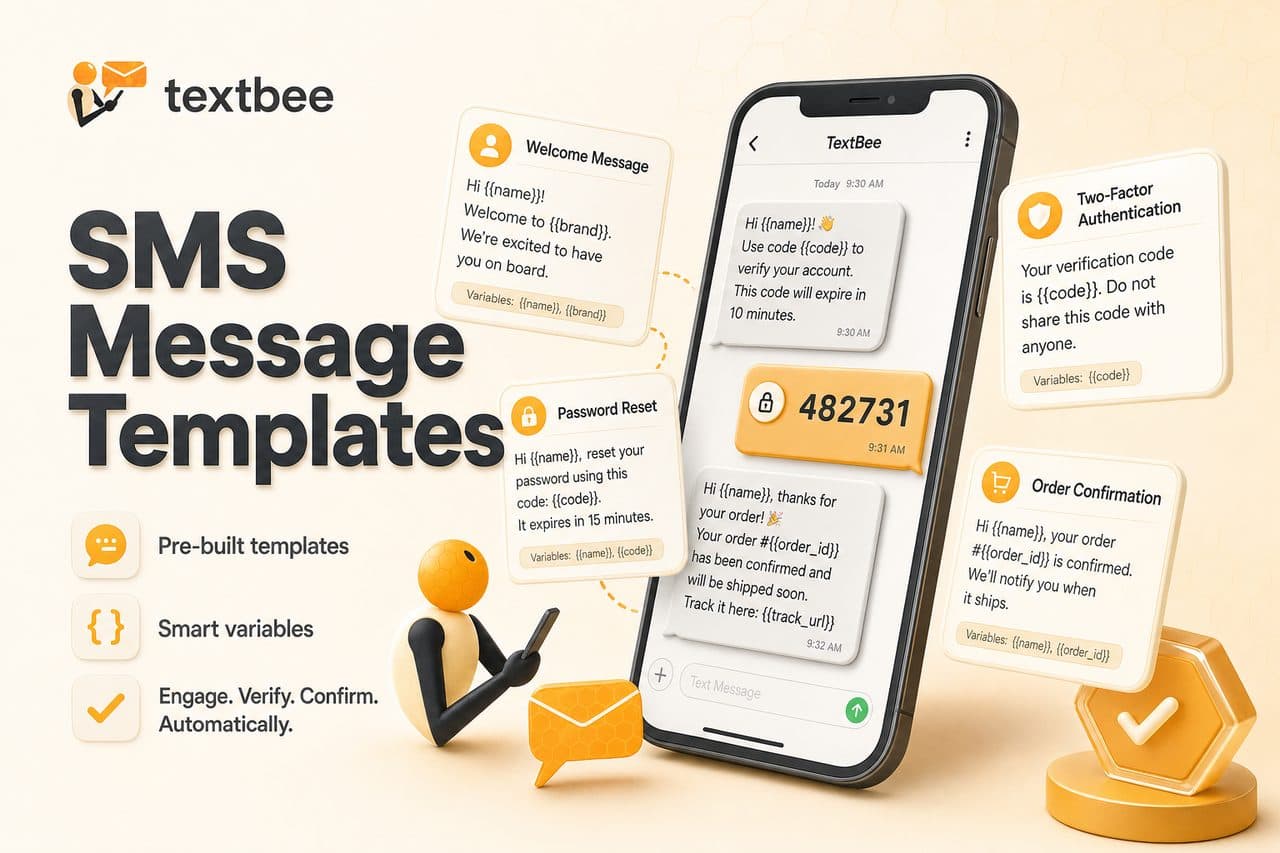
SMS Message Templates: 2FA, Order Updates, and Reminders
Ready-to-use SMS templates for 2FA, order confirmation, shipping, appointment reminders, and alerts. Copy, customize, and use with textbee.dev.

SMS Compliance Checklist: TCPA, Opt-In, and Best Practices
A practical SMS compliance checklist for US marketers and developers. TCPA, consent, opt-out, and how to send compliant SMS campaigns.