
Send SMS from Shopify with Shopify Flow: Order and Shipping Texts From Your Own Phone
Text customers when a Shopify order is placed or shipped, from your own number, with one Shopify Flow workflow and the Send HTTP request action. Liquid body included.
TL;DR
- Shopify sends one SMS by itself: an order confirmation, only when the customer checked out with a phone number and no email, only for stores in a short list of countries, and you cannot edit it. Every other text (shipped, ready for pickup, out for delivery) needs an app or a workflow.
- On the Grow, Advanced and Plus plans, Shopify Flow has a Send HTTP request action. One workflow calls the textbee send endpoint with the order fields, and your Android phone sends the text from your own number. Nothing is installed in the store.
- On the Basic plan, the same request runs from Zapier, Make or n8n with a Shopify trigger.
- This guide builds two workflows: an order confirmation on Order created, and a shipping text with the tracking link on Fulfillment created. Both bodies are copy-paste Liquid.
- The phone sends about 10 to 15 texts a minute. Order updates fit that pace; a flash sale with thousands of orders in an hour queues on the phone, so add a second phone or send fewer statuses.
What Shopify sends on its own
Before you build anything, know what you get for free. Shopify's own SMS notifications cover exactly one message: an order confirmation, sent when there is no email address on the customer profile. Stores in twelve countries can use it, the sender is your store name cut to eleven characters, and the text cannot be edited.
Everything else is on you. Shipping updates, pickup notices, cash-on-delivery checks and review requests all need either an SMS app from the App Store (a subscription plus a per-message fee, usually from a cloud provider) or a workflow that calls an SMS API.
This guide takes the second route with textbee: the workflow calls one endpoint, and the text goes out from the Android phone on your desk, from the number your customers already have. There is no app to install and no number to rent.
What you need
- A Shopify store on the Grow, Advanced or Plus plan. The Send HTTP request action is limited to those plans (Shopify Help, checked September 2026). On Basic, skip to the Basic plan route.
- A textbee account, the Android app on the phone that holds the SIM, and an API key from the dashboard. The quickstart takes about five minutes.
- A checkout that collects a phone number. In your Shopify admin go to Settings, then Checkout, and set the shipping address phone number to Optional or Required. Shopify stores the number in E.164 form (
+12015550123), which is exactly what the send endpoint expects.
The request every workflow makes
Both workflows send the same HTTP request. Only the trigger and the message change.
| Field | Value |
|---|---|
| HTTP method | Post |
| URL | https://api.textbee.dev/api/v1/gateway/send-sms |
| Header | x-api-key: YOUR_TEXTBEE_API_KEY |
| Header | Content-Type: application/json |
| Body | JSON with recipients (an array of E.164 numbers) and message |
The response is {"data": {"success": true, "smsBatchId": "..."}}. Keep the batch id in mind: it is how you look up delivery later.
Workflow 1: order confirmation
Step 1: create the workflow
Open Shopify Flow from Apps and click Create workflow. For the trigger pick Order created. If you capture payments by hand and only want to text once the money is in, pick Order paid instead.
Step 2: add a condition on the phone
Click the plus after the trigger and add a Condition. Choose the variable order.shippingAddress.phone and check that it is not empty. If your checkout lets customers use a phone number as their contact method, check order.phone too, so either one passes.
Without this step, an order with no phone reaches the action with an empty recipients array, textbee answers 400, and the run shows as failed. The condition keeps those runs clean.
Step 3: add the Send HTTP request action
On the Then branch add the Send HTTP request action and fill it in:
- HTTP method:
Post - URL:
https://api.textbee.dev/api/v1/gateway/send-sms - Headers: add two rows,
x-api-keywith your key, andContent-Typewithapplication/json
Flow can store the key as a secret so it never shows in the editor or the run logs. The Send HTTP request reference covers how.
Step 4: paste the body
{% assign phone = order.shippingAddress.phone | default: order.phone %}
{% capture text %}Hi {{ order.customer.firstName | default: "there" }}, order {{ order.name }} is confirmed. Total {{ order.totalPriceSet.shopMoney.amount }} {{ order.totalPriceSet.shopMoney.currencyCode }}. We will text you when it ships.{% endcapture %}
{
  "recipients": [{{ phone | json }}],
  "message": {{ text | json }}
}
Three things to notice:
assignpicks the shipping phone and falls back to the contact phone, so one body works for both checkout settings.capturebuilds the message as plain text first. That keeps the JSON at the bottom short and readable.- The
jsonfilter wraps each value in quotes and escapes it. Whatever a customer typed as their name, the body stays valid JSON. Never put{{ }}output inside hand-typed quotes.
The variable names are the Admin GraphQL field names in camelCase: order.name is the order number with its prefix (#1001), order.customer.firstName is the first name, and order.totalPriceSet.shopMoney.amount is the total in your store currency. Shopify's Liquid variables page lists what each trigger exposes.
Step 5: set the error handling
Two settings below the body decide what Flow does when textbee answers with an error:
- On client error (4XX response): choose Fail. A 401 (wrong key) or 400 (bad body) will not fix itself, and retrying for a day only fills the log.
- On server error (5XX or 429 response): leave on Retry.
Step 6: turn it on and test
Click Turn on workflow, then place a test order with your own number. Within a few seconds your phone buzzes with the confirmation, and the run log in Flow shows the request body and the response with its smsBatchId.
Workflow 2: shipped, with the tracking link
Create a second workflow with the Fulfillment created trigger. This trigger runs once per fulfillment, so a split shipment sends one text per package, each with its own tracking link.
The condition is the same, but the order now sits under fulfillment.order, so the variable is fulfillment.order.shippingAddress.phone.
The action is the same request with this body:
{% assign order = fulfillment.order %}
{% assign phone = order.shippingAddress.phone | default: order.phone %}
{% capture link %}{% for tracking in fulfillment.trackingInfo %}{% if forloop.first %} Track it: {{ tracking.url }}{% endif %}{% endfor %}{% endcapture %}
{% capture text %}Hi {{ order.customer.firstName | default: "there" }}, order {{ order.name }} has shipped.{{ link }} Reply to this text if you have a question.{% endcapture %}
{
  "recipients": [{{ phone | json }}],
  "message": {{ text | json }}
}
fulfillment.trackingInfo is a list, because one package can carry several tracking numbers. The loop takes the first url and leaves the text unchanged when there is none. Use the carrier's link as it is: carriers filter shortened links more often than long ones.
If you would rather send one text per order, trigger on Order fulfilled instead and link to the order status page with order.statusPageUrl, which lists every package.
Other events worth a text
The same pattern works for any Flow trigger that carries an order:
| Event | Trigger | What to say |
|---|---|---|
| Ready for pickup | Fulfillment order line items prepared for pickup | Store address and opening hours |
| Cash on delivery | Order created, plus a condition on the payment gateway name | Ask for a YES reply to confirm the order |
| Review request | Order fulfilled, then a Wait action of a few days | One text with the review link |
| High-value order to the owner | Order created, condition on order.totalPriceSet.shopMoney.amount | Your own number in recipients, order name and total |
Keep every order text free of promotions. The moment a shipping text carries an offer it becomes marketing, which needs separate written consent and a working STOP. The compliance checklist has the details.
The Basic plan route
Send HTTP request is not available on Basic, but the Shopify apps in Zapier, Make and n8n are. The setup is the same idea in a different editor:
- Trigger: the Shopify trigger in your tool. Zapier calls it New Order or New Paid Order, Make has Watch Orders, and n8n's Shopify Trigger node listens for order and fulfillment events.
- Action: the HTTP request from above, with the phone and order fields mapped from the trigger output. The Zapier, Make and n8n pages show the exact module and field names.
The trade is a workflow tool subscription instead of a Shopify plan upgrade. For a store that already runs one of these tools, it is the cheaper route.
Getting replies back to the order
The text comes from a real mobile number, so customers reply to it. "Can you leave it with the neighbour?" is a reply to a shipping text, and it belongs on the order.
Flow cannot receive a webhook, so replies go through the same workflow tools:
- In Make, Zapier or n8n, create a webhook trigger and register its URL in the textbee dashboard under Webhooks for the MESSAGE_RECEIVED event. Each delivery is flat JSON with
sender,messageandreceivedAt. - Use the tool's Shopify module to search customers by phone with the
sendervalue, then read the latest order. - Add the message as an order note or a tag, or post it to the channel your support team watches.
- To answer, a second HTTP step posts to the send endpoint with
recipientsset tosender. The conversation stays on the number the customer already texted.
The webhooks documentation has the full payload and the signature header.
Troubleshooting
The run failed with 401. The x-api-key header is missing or wrong. Copy the key again from the dashboard and check for a trailing space in the header value.
The run failed with 400. The body was not valid JSON, or recipients was empty. Open the run log and read the rendered body. The usual causes are a {{ }} placed inside hand-typed quotes without the json filter, or a missing phone condition.
The phone came out empty. The checkout did not collect a phone. Check Settings, then Checkout, and make the shipping address phone number Optional or Required. Orders placed before the change still have no phone.
The action is not in the list. Send HTTP request needs the Grow, Advanced or Plus plan. On Basic, build the same request in Zapier, Make or n8n instead.
Two texts for one order. Fulfillment created runs per fulfillment. Either accept one text per package, or switch to Order fulfilled and link to the status page.
The text arrived late. The phone was offline or asleep. textbee queues the message and the phone sends it when it reconnects. Keep the gateway phone plugged in, on Wi-Fi, and excluded from battery optimization.
Cost
Shopify Flow is included with every plan, and the Send HTTP request action costs nothing beyond the plan that unlocks it. textbee's pricing is a flat monthly plan with messages included: no per-message fee, no number rental, no carrier surcharge. The only per-text cost is whatever your phone plan charges for SMS, which on most plans is nothing.
For a store sending confirmation and shipping texts on a few hundred orders a month, that is the whole bill.
Frequently asked questions
Is there a textbee app in the Shopify App Store?
No. This route uses the Send HTTP request action that Shopify ships. Nothing is installed in the store, no app reads your customer data, and you can turn the workflow off in one click.
Does Shopify count these texts against anything?
No. The request leaves Shopify as an ordinary HTTP call. Shopify Messaging and its per-message billing are not involved.
Can I send from a specific phone?
Yes. Add "deviceId": "..." to the JSON body. A store with one phone per market can pick it with a Liquid if on order.shippingAddress.countryCode.
How do I know the text was delivered?
The run log shows the smsBatchId textbee returned. Delivery status arrives through a MESSAGE_DELIVERED or MESSAGE_FAILED webhook, or you can add a second Send HTTP request that GETs https://api.textbee.dev/api/v1/gateway/messages?smsBatchId=... with the same header.
Can I text the store owner as well as the customer?
Yes. Put two numbers in the recipients array, or add a second Send HTTP request with your own number and a shorter message. An order over a set amount that texts the owner is a common first workflow.
Does this work for WooCommerce too?
Not with Flow, but the same idea works with one PHP snippet. See WooCommerce SMS notifications without a plugin.
Next steps
- The Shopify integration page has the same setup in reference form, plus a prompt you can hand to an AI agent to build the workflow for you.
- SMS message templates has order and shipping texts that fit in one segment.
- Order and delivery notifications covers which events deserve a text and which do not.
Get more textbee in Google Search
Add textbee.dev as a preferred source. Our posts show up more often in your Google results.
You may also like
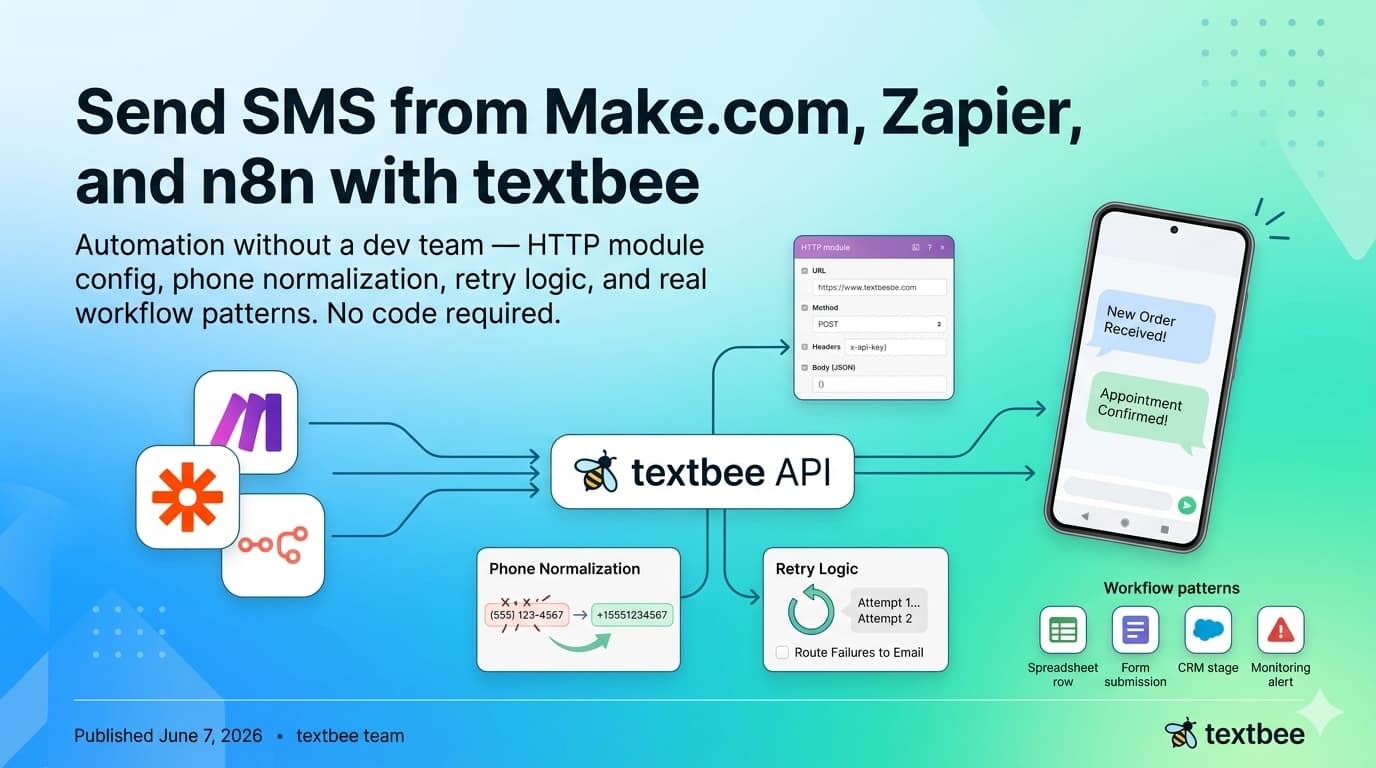
Send SMS from Make.com, Zapier, and n8n with textbee
Automate SMS without a dev team: HTTP module config, phone normalization, retry logic, and workflow patterns for Make.com, Zapier, and n8n. No code needed.
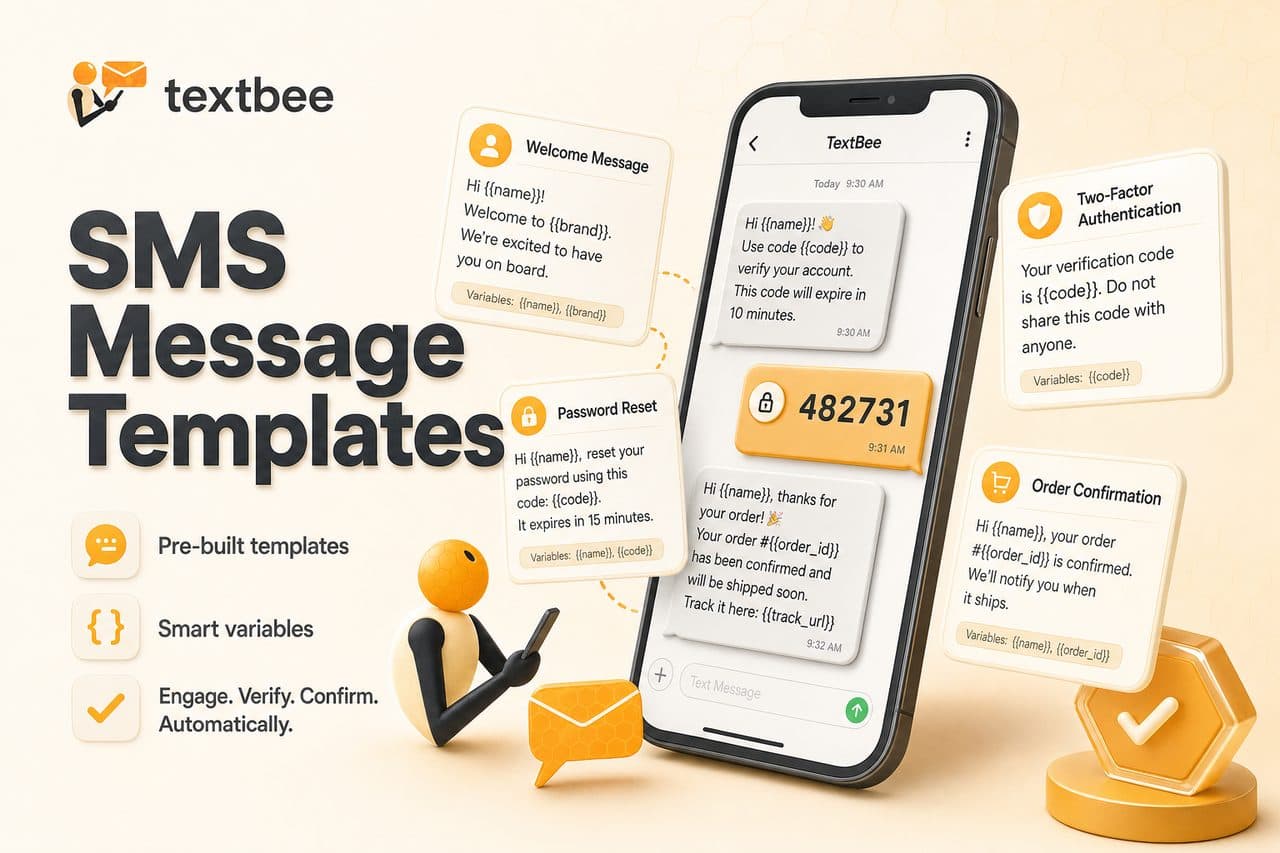
SMS Message Templates: 2FA, Order Updates, and Reminders
Ready-to-use SMS templates for 2FA, order confirmation, shipping, appointment reminders, and alerts. Copy, customize, and use with textbee.dev.

How to Receive SMS and Process Webhooks with textbee
Set up inbound SMS webhooks with textbee. Payload structure, signature verification, Node.js and Python handler examples, STOP keyword handling, OTP reply capture, and local testing with ngrok.